

🧭 Introduction
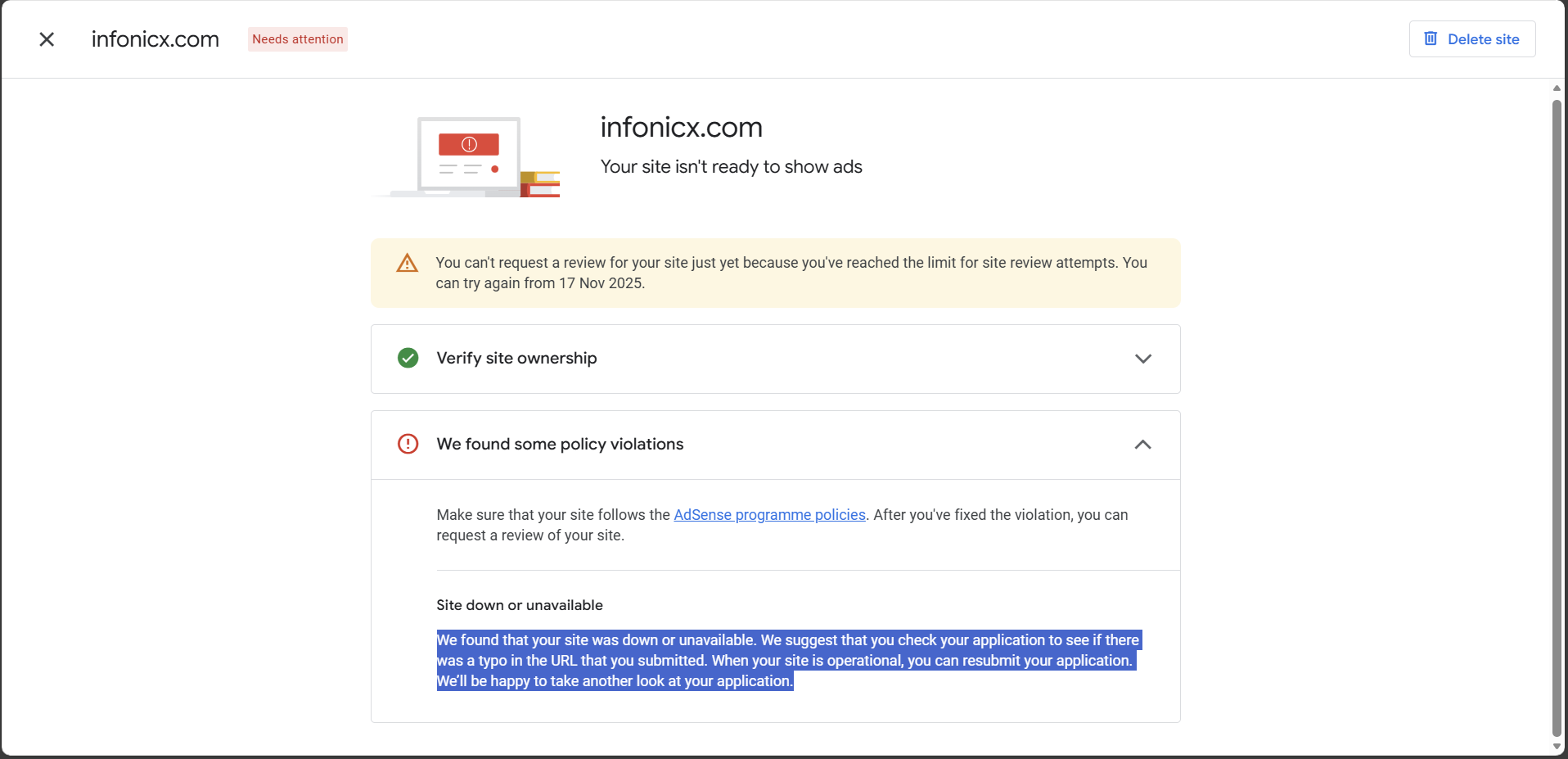
If your AdSense application was rejected with the message
“We found that your site was down or unavailable,”
you’re not alone.
Many publishers see this even when their site opens perfectly fine. The reason? Google’s crawler (AdsBot-Google) couldn’t access your site due to cache rules, firewalls, redirects, or security filters.
According to Google AdSense Help – Fix “Site Down or Unavailable” Issue, this error usually appears when Google’s crawler can’t access your site even if it’s visible to you.
This guide gives you the complete, verified fix used by dozens of successful site owners to get instant AdSense approval.
🚨 Why Google AdSense Says Your Site Is Down
When AdSense reviews your site, its bots check your URL automatically. If they can’t reach your homepage or get a 200 OK response, you’ll see the rejection.
Common hidden causes include:
| Cause | Description |
|---|---|
| ❌ URL mismatch | Submitted http:// instead of https://www. version |
| 🔁 Redirect loops | Misconfigured .htaccess or cPanel redirects |
| 🧱 Firewall or plugin block | Security tools block AdsBot-Google |
| 💾 Caching rewrites | SpeedyCache/LiteSpeed rules serve expired HTML |
| 🕓 Temporary downtime | Server unresponsive when crawler checked |
| 🔒 robots.txt blocking | Disallows / or /index.php |
🧰 Step-by-Step Fix
Step 1 – Verify Your URL
Check which version actually loads:
http://example.comhttps://example.comhttp://www.example.comhttps://www.example.com
You can verify your site’s availability using tools like Down For Everyone Or Just Me or UptimeRobot. These services confirm whether your website is down globally or just from your location.
Only one should work; the others should 301-redirect to it.
Submit that exact canonical URL in your AdSense dashboard under Sites → Add Site.
Step 2 – Test Crawl Accessibility
Open Google’s tool:
👉 https://search.google.com/test/mobile-friendly
If it says “Page loaded successfully,” Googlebot can reach you.
If not, check robots.txt, firewall, and cache settings.
Step 3 – Inspect robots.txt
Go to https://yourdomain.com/robots.txt.
Remove any of these lines if they exist:
User-agent: *
Disallow: /
Make sure Google’s crawler, known as AdsBot-Google, is not blocked. You can also inspect your site’s robots.txt using Google Search Central – robots.txt Rules.
That line blocks all bots — including AdSense crawlers.
Step 4 – Fix Your .htaccess (SpeedyCache/LiteSpeed Conflict)
Caching plugins sometimes rewrite URLs or serve stale HTML that confuses Googlebot.
Replace your current .htaccess with this safe AdSense-approval version:
# SAFE .HTACCESS FOR ADSENSE APPROVAL
<IfModule mod_rewrite.c>
RewriteEngine On
# Allow Google crawlers to bypass cache
RewriteCond %{HTTP_USER_AGENT} (AdsBot-Google|Googlebot|Mediapartners-Google) [NC]
RewriteRule .* - [S=100]
</IfModule>

# WordPress Core
<IfModule mod_rewrite.c>
RewriteEngine On
RewriteRule .* - [E=HTTP_AUTHORIZATION:%{HTTP:Authorization}]
RewriteBase /
RewriteRule ^index\.php$ - [L]
RewriteCond %{REQUEST_FILENAME} !-f
RewriteCond %{REQUEST_FILENAME} !-d
RewriteRule . /index.php [L]
</IfModule>

# Gzip Compression
<IfModule mod_deflate.c>
AddOutputFilterByType DEFLATE text/html text/plain text/xml text/css text/javascript application/javascript application/json image/svg+xml font/ttf font/woff font/woff2
</IfModule>

# Browser Caching
<IfModule mod_expires.c>
ExpiresActive On
ExpiresByType text/css A31536000
ExpiresByType text/javascript A31536000
ExpiresByType image/jpeg A31536000
ExpiresByType image/png A31536000
ExpiresByType image/webp A31536000
ExpiresByType font/woff2 A31536000
</IfModule>

# PHP Handler
<IfModule mime_module>
AddHandler application/x-httpd-ea-php81 .php .phtml
</IfModule>
Use Google’s Mobile-Friendly Test to check if Google can fetch and render your site correctly. For deeper analysis, test with Google PageSpeed Insights to ensure there are no server or blocking issues.
After saving:
- Clear all caches (SpeedyCache → Clear All Cache)
- Purge Cloudflare/LiteSpeed cache if used
- Re-test with the mobile-friendly tool
Step 5 – Reapply to AdSense
When the test shows your page loads correctly:
- Go to AdSense → Sites
- Click Request Review
- Wait 24–48 hours
Google will crawl again, detect your site as online, and continue the approval process.
🔧 Advanced Troubleshooting
- Use an uptime monitor like Uptime.is or Down for Everyone or Just Me to ensure no downtime.
- Check HTTP status code: it must be 200 OK, not 301 or 302 loops.
- Disable maintenance/coming-soon plugins temporarily.
- Whitelist Googlebot IP ranges in your firewall if you use Wordfence or Cloudflare Bot Fight Mode.
❓ FAQs
Q1. My site opens fine for me. Why does AdSense still say it’s down?
Because AdSense uses its own crawler (AdsBot-Google) that may be blocked by caching, firewalls, or redirects invisible to humans.
Q2. Do I need to remove my caching plugin permanently?
No. Just disable its rewrite rules until your site is approved, then re-enable for performance.
Q3. How long should I wait after resubmitting?
Usually 24–48 hours. If still rejected, re-check robots.txt and test again in Google’s tool.
🧩 Conclusion
The “Site down or unavailable” message doesn’t mean your website is actually offline — it means Googlebot couldn’t reach it.
By using the safe .htaccess, clearing cache, and ensuring your canonical URL and robots.txt are correct, you’ll resolve the issue completely and move forward toward AdSense approval.
🔑 Final Checklist Before Reapplying
✅ Correct canonical URL submitted
✅ robots.txt allows crawling
✅ Cache & WebP rewrites disabled
✅ Tested successfully in Google’s Mobile-Friendly tool
✅ Server returns 200 OK
For full AdSense eligibility rules, review Google AdSense Help – Site Approval Requirements. Once your site passes all checks, resubmit it in your Google Search Console to confirm accessibility before reapplying for AdSense.
📈 Bonus SEO Tip
After AdSense approval, re-enable caching for speed, add a sitemap to Google Search Console, and use structured data (schema markup) for better ranking and ad performance. For more tips and help do contact us.
Claim 5% Rebate and Exclusive Bonuses on AsterDEX https://is.gd/CGTnqR